IBackup - online backup and online storage  

home Support

Signup Pricing plans Products Downloads Security Support Partners FAQ


Granting Mailbox Rights


Microsoft Exchange 2000, 2003 and 2007 Server accounts with Enterprise Administrators mailbox access rights are denied by default. This restriction is also applicable if your login account is the Administrator account or you are a member of the Domain Admins or Enterprise Admins groups. In these cases also, access to all mailboxes other than your own will be denied, even if you have full administrative rights.

However, Exchange 2000/2003/2007 administrative tasks can be performed without granting an administrator the rights to read anybody's mail.

These default restrictions can be removed with methods that are in agreement with your organization's security and privacy policies. They (the methods) are generally appropriate in a recovery server environment.

Granting rights to a specific mailbox

Listed below are the steps given to grant access to Exchange 2000/2003/2007 Mailbox:

For Exchange 2007 Mailbox:

Open the Exchange 2007 management shell and enter the following

Syntax:
Add-MailboxPermission - identity <mailbox name> -accessRights fullAccess - User administrator

Example: To grant full access to the Mailbox 'Adams'.
Add-MailboxPermission - identity Adams - accessRights fullAccess - User administrator

Note: To perform Exchange 2007 Brick-Level Backup, install the standalone version of MAPI from the Microsoft site. Download Standalone version of MAPI


Resources
Download
Advanced Backup Plug-in


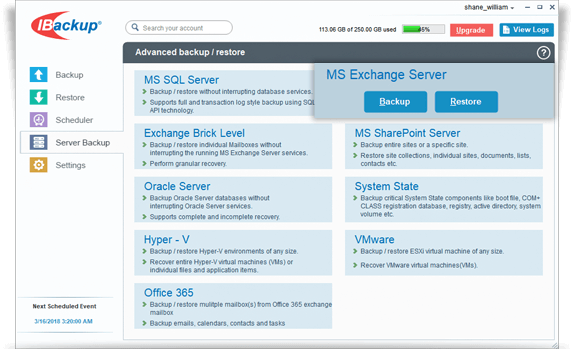
Exchange Mailbox Backup

Steps to 'Backup MS Exchange Server Mailbox' using IBackup for Windows.

Exchange Mailbox Restore

Steps to 'Restore of MS Exchange Server Mailbox' using IBackup for Windows.

Related Links

User manual
Product data sheet
Business solutions


For Exchange 2000 or Exchange 2003 Mailbox:


Note: You must have the appropriate Exchange administrative permissions to do so.

1. Start 'Active Directory Users and Computers'.

2. On the 'View' menu, ensure that the 'Advanced Features' check box is selected.

Note: This is not necessary on Exchange Server 2003 as the 'Exchange Advanced tab' is exposed by default.

3. Right-click on the user for whose mailbox you want to grant permission and choose 'Properties'.

Exchange Server Backup

4. On the 'Exchange Advanced' tab, click 'Mailbox Rights…'

Exchange Server Backup

5. Notice that the 'Domain Admins' and 'Enterprise Admins' have both been given 'Deny access' to 'Full Mailbox access'.

6. Click 'Add' and then click on the user/group for which you want to grant access to this mailbox and click 'OK'.

7. Ensure that the user/group is selected in the 'Name' box.

8. In the 'Permissions list', click 'Allow' next to 'Full mailbox access' and click 'OK'.

Exchange Server Backup

9. Click 'Ok' to finish.

   
  Granting rights to mailboxes located within a specific mailbox store

Listed below is the procedure to grant access to Exchange 2000 or Exchange 2003 mailboxes found on a specific mailbox store.

Note: You must have the appropriate Exchange administrative permissions to do so.

1. Start 'Exchange System Manager'.

2. Go to your server object within the appropriate Administrative Group. Expand the server object and locate the required mailbox store within the appropriate 'Storage Group'. Right-click and choose the 'Properties' option.

Exchange Server Backup

3. On the 'Properties' window click the 'Security' tab.

4. Click 'Add' and then click on the user/group for whom you want to grant access to the mailboxes and click 'OK'.

5. Ensure that the user/group is selected in the 'Name' box.

6. On the 'Permissions' list, click 'Allow' next to 'Full Control' and then click 'OK'.

Exchange Server Backup

Note: Ensure that no 'Deny' checkbox is selected next to the 'Send As' and 'Receive As permissions' options.

7. Click 'Ok' to finish

   
  Granting rights to a mailboxes located on a specific server

Listed below is the procedure to grant access to Exchange 2000 or Exchange 2003 mailboxes found on a specific server:

Note: You must have the appropriate Exchange administrative permissions to proceed.

1. Start Exchange System Manager.

2. Go to your server object within the appropriate 'Administrative Group'. Right-click on it and choose 'Properties'.

Exchange Server Backup

3. In the 'Properties' window go to the 'Security' tab.

4. Click 'Add' and then click on the user/group for which you want to grant access to the mailboxes and click 'OK'.

5. Ensure that the user/group is selected in the 'Name' box.

6. On the 'Permissions' list, click 'Allow' next to 'Full Control' and then click 'OK'.

Note: Ensure that no 'Deny' checkbox is selected next to the 'Send As' and 'Receive As permissions' options.

Exchange Server Backup

7. Click 'Ok' to finish.