MS Exchange Server - Backup
Hot backup of your entire mail server, easily recover any lost or deleted emails.
Features
- Backup / restore the Mailbox / Public Folder Stores (Storage Groups/Databases) of MS Exchange Server.
- Backups can be scheduled for a future date and time with the various scheduling options.
- Enhanced security with 256-bit AES encryption on transfer and storage with a user-defined key that is not stored anywhere on IBackup servers.
- Email and Desktop notifications on completion of backup.
- Session based logs of backup activities.
To backup your MS Exchange Server,
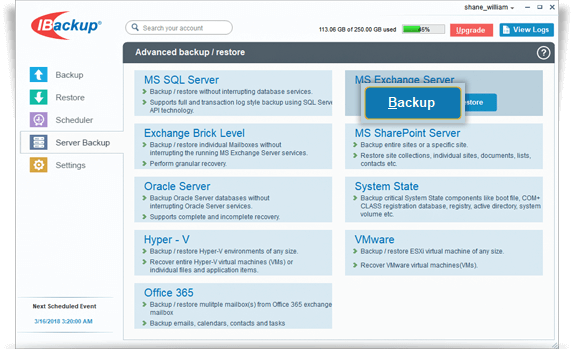
- Login to the IBackup application and click the ‘Server Backup’ tab.
- Under MS Exchange Server section, click 'Backup'.
- Select the mailbox database(s) from the list displayed, specify the temporary local backup path.
- Select Online Backup or Local Backup radio button, and click Schedule Now.
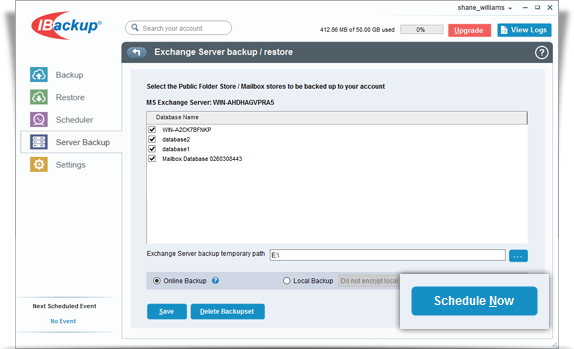
Note: Ensure that the selected temporary folder on the local computer has sufficient free hard drive space to hold the MS Exchange Server backup files. You cannot select a remote location as a temporary location for the MS Exchange Server backup. - The ‘Schedule backup’ screen is displayed where you can schedule the backup for any future day and time or perform an immediate backup of the selected databases.
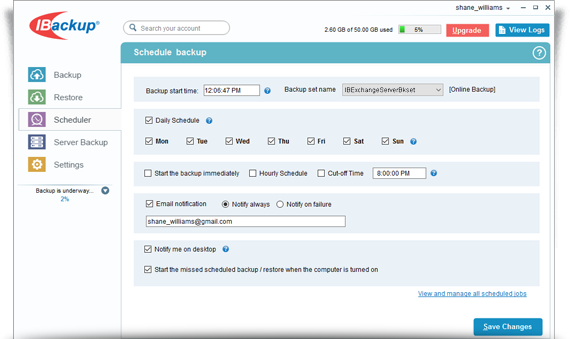
Note: On successful backup of the MS Exchange Server databases to your IBackup account, the files are stored in a folder called 'IBackupExchBackupset'. It is not advisable to update or delete files manually as it may interrupt the Exchange Server restore operation. Also, avoid using the 'IBackupExchBackupset' as a destination folder for any other backup/ restore operation.
At any given point of time, you can maintain only one backup job named 'IBExchangeServerBkset'.
View the steps to restore the MS Exchange Server.
System Requirements
For Exchange Server 2019
- x64 architecture-based computer with Intel processor that supports Intel, 64 architecture (formerly known as Intel EM64T), AMD processor that supports the AMD64 platform
- Windows Server 2019
- Minimum 128 GB of RAM per server and sufficient space in the hard disk to store the MS Exchange Server Mailbox backup files
For Exchange Server 2016
- x64 architecture-based computer with Intel processor that supports Intel, 64 architecture (formerly known as Intel EM64T), AMD processor that supports the AMD64 platform, Intel Itanium IA64 processors not supported
- Windows Server 2012, Windows Server 2012 R2 and Windows Server 2016
- Minimum 8 GB of RAM per server and sufficient space in the hard disk to store the MS Exchange Server Mailbox backup files
For Exchange Server 2013
- x64 architecture-based computer with Intel processor that supports Intel, 64 architecture (formerly known as Intel EM64T), AMD processor that supports the AMD64 platform
- Windows Server 2012 Standard, Windows Server 2008 R2 Standard with Service Pack 1 (SP1), Windows Server 2008 R2 Enterprise with Service Pack 1 (SP1), Windows Server 2008 R2 Datacenter RTM or later
- Minimum 8 GB of RAM per server and sufficient space in the hard disk to store the MS Exchange Server database backup files (IBackupExchBackupSet)
For Exchange Server 2010
- x64 architecture-based computer with Intel processor that supports Intel Extended Memory 64 Technology (Intel EM64T) or AMD processor that supports the AMD64 platform
- Microsoft Windows Server 2008 x64 Standard and Enterprise Edition with Service Pack 2 or Microsoft Windows Server 2008 R2 Standard and Enterprise Edition
- Minimum 4 GB of RAM per server and sufficient space in the hard disk to store the MS Exchange Server database backup files (IBackupExchBackupSet)
For Exchange Server 2007
- x64 architecture-based computer with Intel processor that supports Intel Extended Memory 64 Technology (Intel EM64T) or AMD processor that supports the AMD64 platform
- Windows Server 2008, Microsoft Windows Server 2003 x64 or Windows Server 2003 R2 x64, Standard or Enterprise Edition, Windows Server 2003 SP1
- Minimum 2 GB of RAM per server and sufficient space in the hard disk to store the MS Exchange Server database backup files (IBackupExchBackupSet)
For Exchange Server 2003
- 133-megahertz (MHz) or higher processor
- Windows Server 2008, Windows Server 2003, Enterprise Edition or Windows Server 2003, Datacenter Edition with or without Service Pack, Windows Server 2003, Standard Edition, Windows 2000 Advanced Server or Windows 2000 Datacenter Server with SP3 or higher, Microsoft Windows 2000 Server
- 256 megabytes (MB) of RAM and sufficient space on the hard disk to store the MS Exchange Server database backup files (IBackupExchBackupSet)
For Exchange Server 2000
Exchange Server 2000, Exchange 2000 Enterprise Server require the following minimum system configuration
- Intel Pentium or compatible 166-megahertz (MHz) or higher processor
- Microsoft Windows 2000 Server, which can co-exist with Microsoft Windows Server 2003 domain controllers and global catalog servers
- Exchange Server Service Pack 3
- Sufficient space in hard disk to store the MS Exchange Server database backup files (IBackupExchBackupSet)