MS Exchange Brick-Level Mailbox - Restore
Retrieve a lost, deleted or truncated email message – ensure business continuity
IBackup provides an easy, secure and reliable way to restore mailboxes from a Personal Folder (.PST) file to the MS Exchange Server Store through the 'Exchange Brick-Level Mailbox Restore'. The application restores the contents of the selected Personal Folder (.PST) file to a corresponding Exchange Server Mailbox.
IBackup 'Exchange Brick-Level Mailbox Restore' is designed to restore mailboxes from a Personal Folder(.PST) file to the selected Exchange Server Mailbox. This is not a method for the complete recovery of the Exchange Server databases. Use the 'Exchange Server restore' feature of the IBackup application to perform complete recovery.
Features
- Online restore of mailboxes from your Personal Folder (.PST) file to MS Exchange Server Mailbox store without interrupting the running MS Exchange Server services.
- Enhanced security with 256-bit AES encryption on transfer and storage with a user-defined key that is not stored anywhere on IBackup servers.
- Session based logs of restore activities.
To restore mailboxes,
- Login to the IBackup application and click the ‘Restore’ tab.
- Locate and select the personal folder (*.PST) from the ‘IBExchBrick’ folder in your IBackup account.
- Click the 'Restore Now' button, to restore the .PST file to the local computer.
- Once the .PST file has been successfully restored, click the ‘Server Backup’ tab.
- Click 'Restore,' under Exchange Brick Level section.
- Browse and select the .PST file from your local computer (the location where the folder was restored earlier from your IBackup account).
Import procedures:
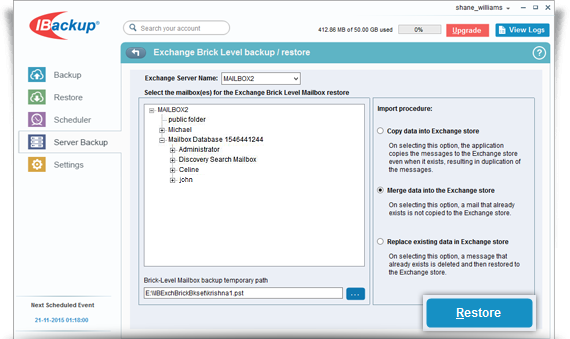
Copy data into Exchange store:On selecting this option, the application copies the email to the Exchange store even when it is already present. Thus, a duplicate email is created in the Exchange store.
Merge data into the Exchange store:On selecting this option, the application checks whether the copied email is present in the Exchange store. If it is, then the email is not copied on restore.
Replace existing data in Exchange store: On selecting this option, the application checks whether the copied email is present in the Exchange store. If it is, then email is first deleted from the Exchange store and then copied.
- Click the 'Restore' button to initiate the Exchange Server Brick Level restore operation.