Share files/folders for collaborative access using IBackup for Windows
Collaborate with associates by creating share links for backed up files and folders
Files/Folders can be shared with associates in the following ways:
Select files/folders and click the 'Share' icon on the tool bar.
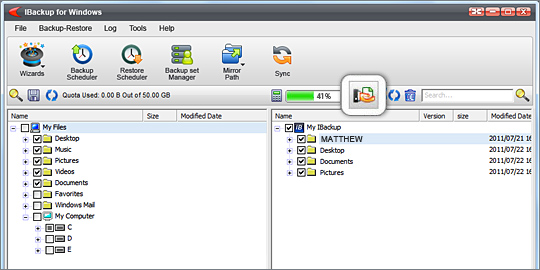
Alternately, right click on the files/folders you wish to share and from the menu displayed, click on the 'Share File/Folder' option.
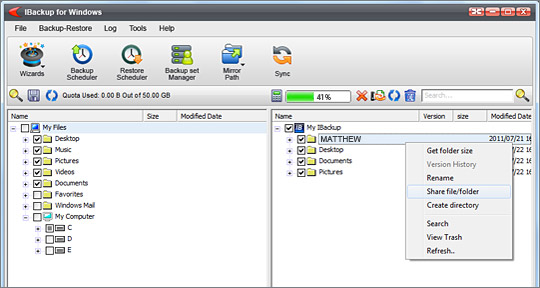
This takes you to the 'Share Files and Folders' window from where you can set the share parameters and enter the email address of the recipient(s).
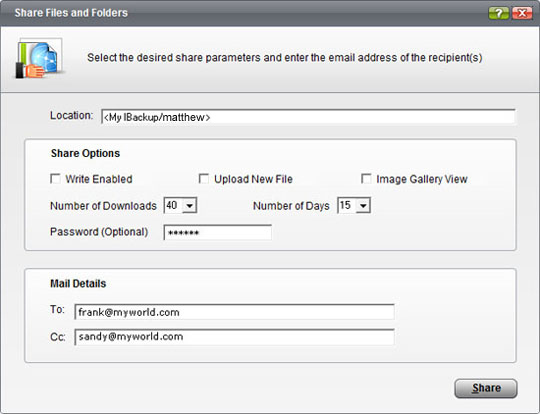
You can choose from among the options listed below while generating a share link:
- Location: Shows the location of shared files/folders in your account
- Write Enabled: Permits your associate to modify and upload the shared files/folders to your account
- Upload New File: Allows your associate to upload a new file to your account
- Image Gallery View: Allows your associate to view all the pictures as thumbnails
- Number of Downloads: The number of downloads permitted for your shared files/folders before the share link expires
- Number of Days: The duration for which the shared link would be active
- Password: Safeguard the shared files/folders by providing a password and sharing the same with your associates
- Mail Details: Enter the email addresses of the recipient with whom you wish to share the files/folders
Note: Sharing option is available only for IBackup accounts with default encryption.