Share file/folder for collaborative access using IBackup for Mac
Collaborate with associates by creating share links for backed up files and folders
Files/Folders can be shared with associates in the following ways:
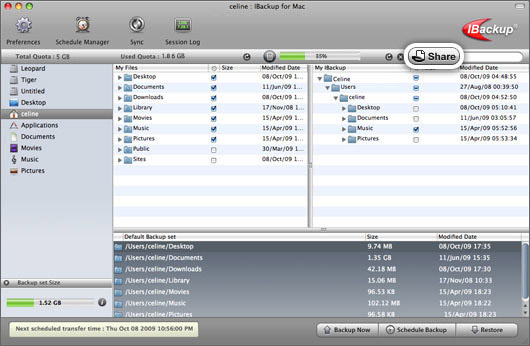
Select files/folders and click the 'Share' icon on the tool bar.
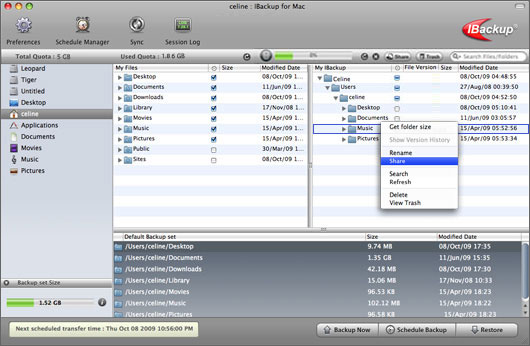
Alternately, right click on the files/folders you wish to share and from the menu displayed, click on the 'Share' option.
This takes you to a popup window from where you can set the share parameters and enter the email address of the recipient(s).
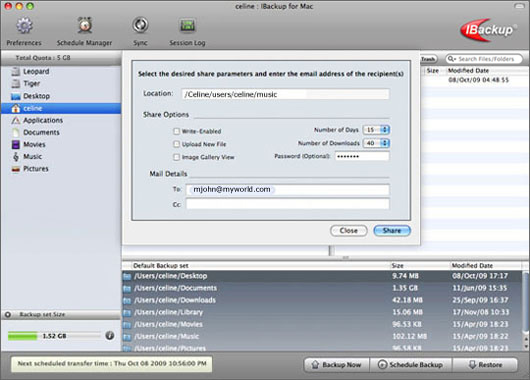
You can choose from the options listed below while generating a share link:
- Location: Shows the location of shared file/folder in your account
- Write Enabled: Permits your associate to modify and upload the shared file/folder to your account
- Upload New file: Allows your associate to upload a new file to your account
- Image Gallery View: Allows your associate to view all the pictures as thumbnails
- Number of Days: The duration for which the shared link would be active
- Number of Downloads: The number of downloads permitted for your shared file/folder before the link expires
- Password: Safeguard the shared file/folder by providing a password and sharing the same with your associates
- Mail Details: Enter the email addresses of the recipient with whom you wish to share the files/folders
Note: Sharing option is available only for IBackup accounts with default encryption.